Sinko سينكو

Free software · Arabic and English

Sinkoسينكو

Calm internet for the family

Sinko is a free parental-controls page for a small box in your home. Block apps in one tap, set homework time and bedtime, and see what the box is doing, in Arabic or English.

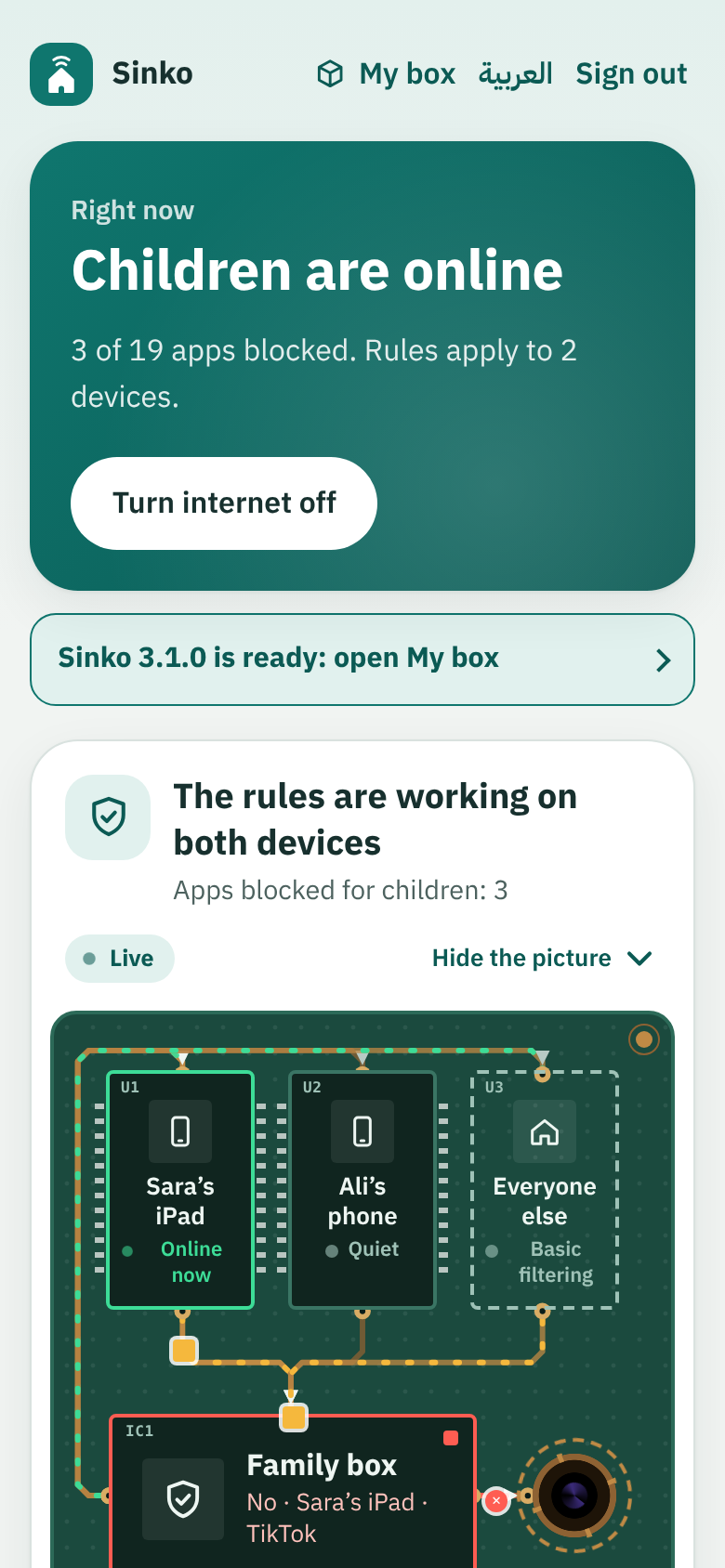
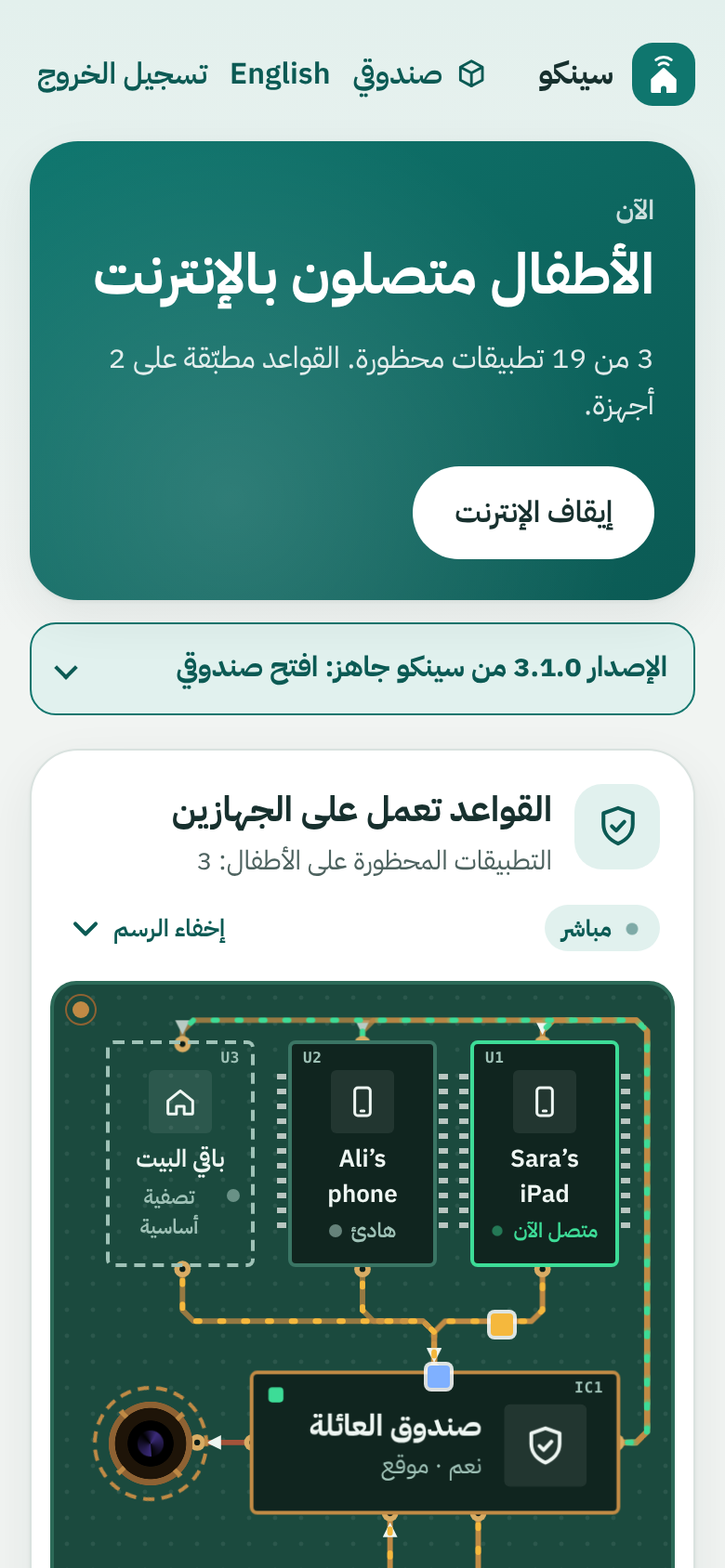
The Sinko page on a phone: the home screen, with the rules working

How it works

  1. Plug in the family box

    A small box connects to your router with a network cable. A ready-made box is already set up. If you build your own, one command does it.

  2. Point your router at the box

    One setting in the router, and every phone and tablet at home asks the box first.

  3. Open the page on your phone

    Block apps, set homework time and bedtime, and watch what is happening, from any phone on your home Wi‑Fi.

Set up your box, step by step

Never set up a gadget before? This guide is for you. It takes about 15 minutes, and you do it only once. You need the Sinko box, its network cable and USB cable, your home router and your phone.

Network cable (LAN) USB cable (power) Your router Sinko box
The box sits beside your router. The network cable goes into a LAN socket, and the USB cable gives it power.
  1. Put the box beside your router

    Your router is the box your internet company gave you, usually with small blinking lights. Put the Sinko box beside it, somewhere it can stay plugged in all the time.

  2. Plug in the network cable

    Push one end of the network cable into the socket on the Sinko box until it clicks. Push the other end into a free socket on the back of the router, one marked LAN or numbered 1 to 4. Do not use the socket marked WAN or Internet.

  3. Power it from the router

    Plug the small end of the USB cable (USB-C) into the Sinko box, and the large end (USB-A) into the USB socket on your router. A light on the box comes on. The first start takes about 5 minutes, so leave it alone until then.

    No USB socket on the router, or does the box keep switching off and on by itself? Use a phone charger of 5 V and at least 2 A instead. When the router restarts, the box restarts too and is back within two minutes.

  4. Open the Sinko page on your phone

    Connect your phone to your home Wi‑Fi, not mobile data. Open Safari or Chrome, type sinko.local in the address bar and go.

    If the page does not open, use the box’s number address instead: the next step shows how to find it. Some Android phones open only the number address.

  5. Find the box’s number address

    Open your router’s settings page. Its address and password are on the sticker under the router, often 192.168.1.1 or 192.168.0.1. Look for a list called Connected devices, Attached devices or DHCP clients, and find the device named sinko. Its address is four numbers with dots, such as 192.168.1.50. Type that number in your phone’s browser.

  6. Choose your parent password

    The first time you open the page, it asks you to choose a parent password. Pick one your children cannot guess, write it down somewhere safe, and keep it to yourself.

    If the page asks you to sign in the very first time you open it, someone else got there first. Contact us before you go on.

  7. Tell your router to use the box

    This one setting sends every phone and tablet at home through the box. The Sinko page shows the exact number to use under Setup help. On the router’s settings page:

    • Open the LAN or DHCP settings and find DNS server.
    • Set it to the box’s number address, for example 192.168.1.50. Leave the second DNS server empty: if another one is listed, devices use it to go around the box.
    • Find DHCP reservation, Static lease or Address reservation, and reserve the box’s address so that it never changes.
    • If you see IPv6 DNS settings, turn them off or set them to the box as well.
    • Save. If the router asks to restart, let it.

    Every router names these settings a little differently. Stuck, or does your router not let you change the DNS server? Contact us with a photo of the router’s sticker, and we will tell you where to look.

  8. Reconnect your children’s devices

    On each child’s phone, tablet, laptop and game console, turn Wi‑Fi off and on again, so that it picks up the new setting.

    Also turn off the private Wi‑Fi address for your home network, so that the box always knows the device. iPhone and iPad: Settings, Wi‑Fi, tap the i next to your network, and set Private Wi‑Fi Address to Off. Android: Settings, Wi‑Fi, your network, Privacy, and choose Use device MAC.

  9. Add each child’s device

    On the child’s device, open any website so that the box sees it. Then, on your phone, tap Add device on the Sinko page, pick that device from the list, give it a name such as Sara’s iPad, and save. Do this for every device your children use.

    Device not in the list? Wait a minute, open a website on it again, and try once more.

  10. Choose your rules

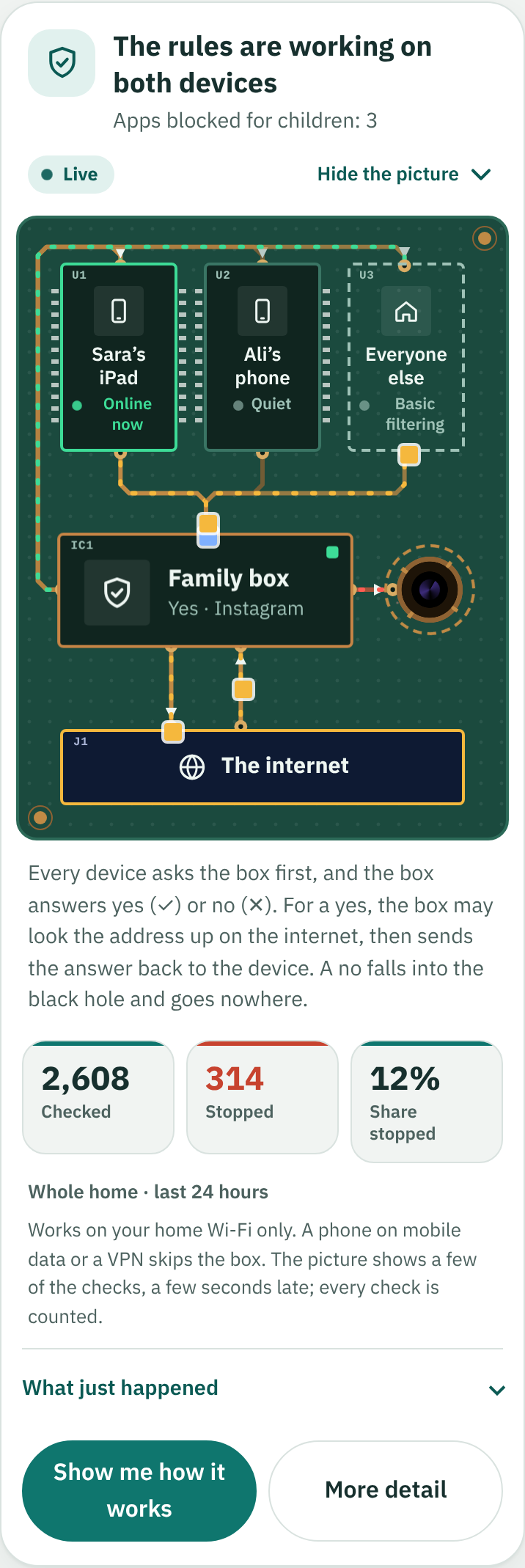
    Tap an app to block or allow it. Use Homework when it is time to study, and turn on Bedtime so that the internet goes off at night by itself. The live picture shows what the box is allowing and stopping right now.

  11. Check that it works

    Block YouTube on the page, then try to open YouTube on your child’s device: it should not load. Apps that were already open can take a few minutes to stop. The checklist on the Sinko page ticks the router step by itself as soon as a device uses the box.

What you can do

  • Block apps in one tap

    YouTube, TikTok, Roblox, Snapchat and many more. Tap an app to block it, tap again to allow it.

  • Homework mode

    Games, video and social media off in one tap, with a timer. Free time and offline breaks too.

  • Bedtime

    The internet turns off for the children’s devices at night and back on in the morning, even when the page is closed.

  • The live picture

    See what the box is doing, in words a parent can follow: who is asking, what is allowed and what is stopped.

  • Updates from the page

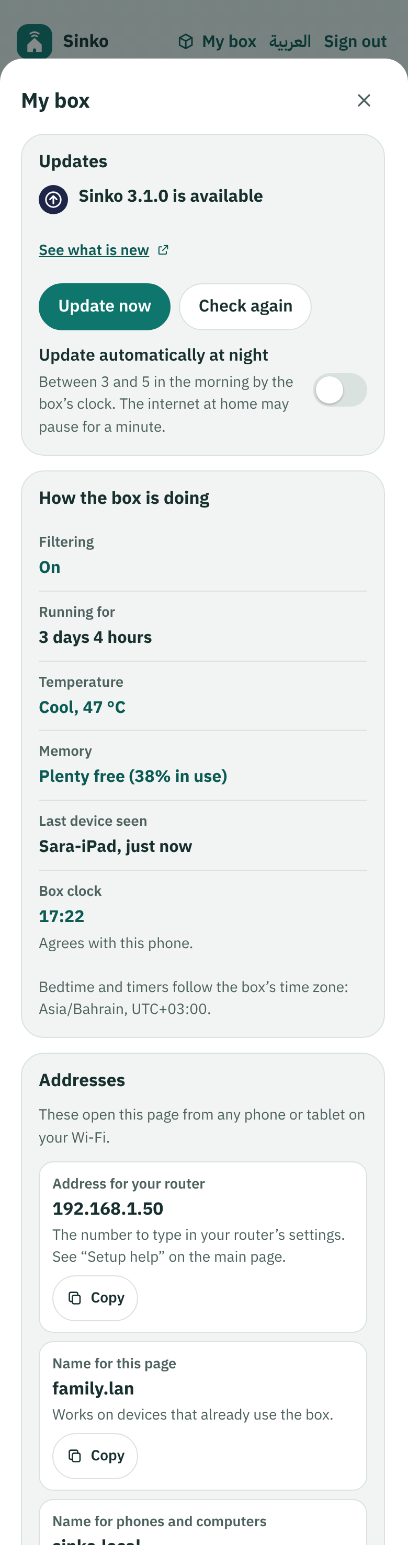
    One tap to update. The box checks that the new version works, and goes back by itself if it does not.

  • Arabic and English

    The whole page follows your language, right to left or left to right. Switch whenever you like.

Two ways to get Sinko

Sinko is free software. Build your own box, or get one that is ready to plug in.

Build your own

For anyone with an Orange Pi Zero 3 or another small Debian computer. It takes about 20 minutes.

  1. Put Armbian minimal (Debian Trixie) for the Orange Pi Zero 3 on a microSD card of 8 GB or more.
  2. Connect the network cable and the power, log in over SSH and choose a strong password for the box.
  3. Run this one line and answer the questions:
curl --proto '=https' --proto-redir '=https' -fsSL https://github.com/iret33/sinko/releases/latest/download/install.sh | sudo bash

Use the network cable rather than Wi‑Fi, and avoid the 1.5 GB model.
Full instructions on GitHub

Ready-made

A Sinko box that is already set up. Plug it in, open the page on your phone and choose your password. No computer skills needed.

Not on sale yet. Follow the project on GitHub for news.

Questions

Does it work on mobile data or with a VPN?

Only at home. Sinko works through your home Wi‑Fi, so a phone on mobile data or a VPN goes around the box. For outside the home, use it together with Screen Time on iPhone or Family Link on Android.

What does Sinko know about us?

Sinko keeps your family’s names, devices and rules on the box and never sends them to the project. Like any DNS filter, the box asks an upstream DNS service (Cloudflare for Families by default) to find the address of the sites it does not block, so that service sees those site names and your home’s internet address. There is one optional anonymous counter, and it is off until you say yes. It sends a random code, the version and the kind of box, and nothing else.

Read the privacy statement

What does it cost?

The software is free. To build your own you need the small computer, a microSD card and a power supply. Or get a box that is ready-made.

How do I update it?

Open My box on the page and tap Update now, or switch on automatic updates at night. The box checks that the new version works, and goes back by itself if it does not.

How do I remove it?

On a box you built yourself, run this command. It removes Sinko and its rules and keeps Pi-hole. A ready-made box has nothing to remove: unplug it. Then undo the router setting from step 2.

sudo /opt/sinko/uninstall.sh